
The best tools for editors and proofreaders to stop retyping comments on Mac
If you edit for a living, you type the same comments again and again: check this reference, this is spelled differently elsewhere, consider splitting this sentence. Here are the tools that stop the retyping, from what's already in Word to dedicated text expanders.
By Textfold · Updated
A quick disclosure: I make Textfold, one of the text expanders below. I've tried to be fair to the others and to say when something else is the better fit.
What editors repeat
- Margin comments and author queries, often word for word
- Style decisions you explain in every manuscript
- Emails: quotes, scheduling, handover notes, invoice reminders
- Your style sheet entries and boilerplate for the client
Most of this is the same twenty or thirty phrases. Saving them once means each comment takes two seconds instead of twenty, and they're worded carefully every time, even at the end of a long day.
1. Word's own tools: AutoCorrect and AutoText
If you work almost entirely in Word, start here. AutoCorrect (Tools → AutoCorrect) replaces a short code with longer text as you type. AutoText stores longer passages: select the text, choose Insert → AutoText → New, and name it. On Mac, AutoText is easiest to use once you add it to the Quick Access Toolbar or give it a keyboard shortcut.
Good for: formatted text that stays inside Word. Limits: they only work in Word, so your queries don't follow you into Google Docs, email or a client's web portal, and the entries live in Word's template rather than somewhere you can easily see and back up.
2. PerfectIt: checking, not typing
PerfectIt is a well-known editing tool that scans a document for consistency problems, such as words hyphenated two ways or abbreviations used before they're defined. It's a subscription (its blog lists $90 a year for individuals, with discounts for members of editing associations), and on Mac it runs as PerfectIt Cloud.
It solves a different problem from the others here: it finds issues, rather than typing your comments. Many editors use both.
3. Google Docs substitutions
Google Docs has automatic substitutions under Tools → Preferences → Substitutions, mostly for symbols and corrections. It's fine for fixing your own typos, but it isn't built for a library of editing comments, and it only works in Google Docs.
4. A text expander: your comments in every app
A text expander replaces a short abbreviation with your saved text in any app: Word, its comment boxes, Google Docs, email and web forms. Type ;ref, and the full query appears. The better ones can also ask for a detail before inserting, so one snippet covers many cases.
- TextExpander: the best known, on Mac, Windows, iPhone and in Chrome, with shared team libraries. It needs an account and a subscription. Compared with Textfold.
- Typinator: a mature Mac app with deep features, including regular expressions and scripts. A one-time license covers one major version. Compared with Textfold.
- aText: inexpensive, on Mac and Windows, and it can insert formatted text and images. Compared with Textfold.
- Espanso: free and open source, configured by editing YAML files. Good if you like config files. Compared with Textfold.
- Textfold: the one I make. A native Mac app with fill-in forms, dates and a live preview, snippets kept as plain text files you own, no account, and nothing you type leaves your Mac. Free for 10 snippets with every feature; Pro is $29 once. Plain text only, so no logos or bold.
For prices and platforms side by side, see the best text expanders for Mac, compared.
Snippets to start with
Here are six editing snippets, written for Textfold. The parts in braces ask for a detail or fill in a date when you type the abbreviation. Change the wording to your own voice; the point is to write it carefully once.
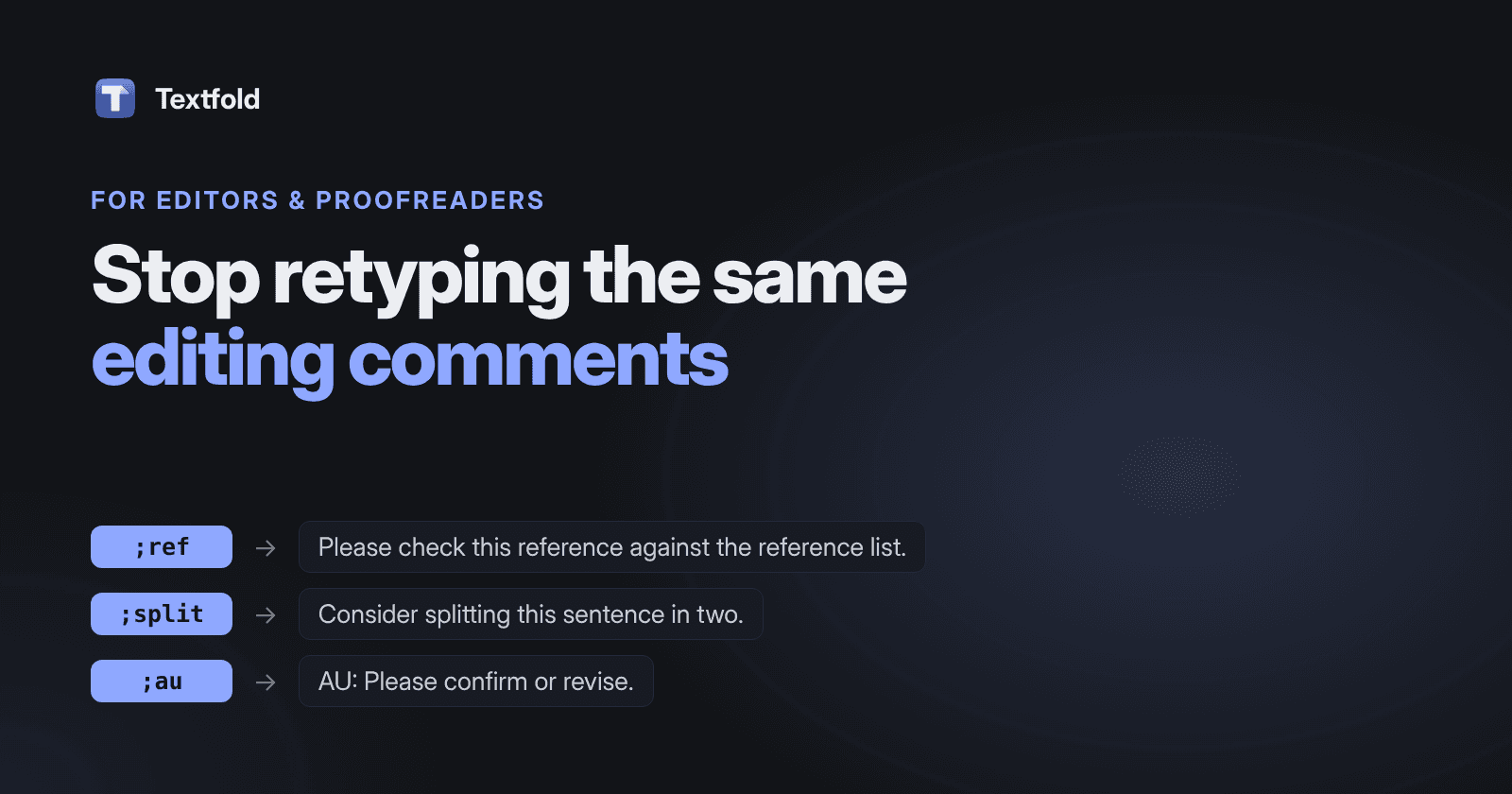
;ref Query a reference
Please check this reference against the reference list. I couldn't find a matching entry.;cons Consistency
This is spelled {choice:Spelled|differently|with a hyphen|without a hyphen} elsewhere in the manuscript. I've made it consistent; please confirm.;split Long sentence
Consider splitting this sentence in two. It's carrying several ideas, and readers may lose the thread.;au Author query
AU: {field:Question} Please confirm or revise.;fact Fact check
Please confirm this {choice:Detail|date|figure|name|quotation}. I couldn't verify it from the sources provided.;done Handover email
Hi {field:Client name},

The edited file is attached, with tracked changes and comments. The main points are in my note at the top. My invoice will follow by {date:d MMMM+2d}.

Thanks for trusting me with this one.
{choice:…} shows a small menu of options, {field:…} asks you to type a detail, and {date:d MMMM+2d} inserts the date two days from today. The placeholder list has the rest.
Tips from working this way
- Start with five. Look at your last two manuscripts and save the five comments you wrote most.
- Use a prefix. Starting every abbreviation with
;means it never fires inside a real word. - Keep them polite and specific. A saved comment is read by every author you work with, so it's worth five minutes of wording.
- Review them yearly. Style guides change, and so does your voice.
Which to choose
- You only edit in Word and need formatting in your comments: Word's AutoText.
- You want help spotting inconsistencies: PerfectIt, alongside any of the others.
- You work across Word, Google Docs and email: a text expander. On a Mac, Textfold's free plan covers 10 snippets with every feature, enough to try it on a real manuscript.