
How to create email templates in Apple Mail (3 ways that work in 2026)
Apple Mail has no template button: no Templates menu, no Save as Template. If you send the same email again and again, here are three ways to stop rewriting it, from a built-in trick that takes a minute to set up to snippets that fill in the name for you.
By Textfold · Updated
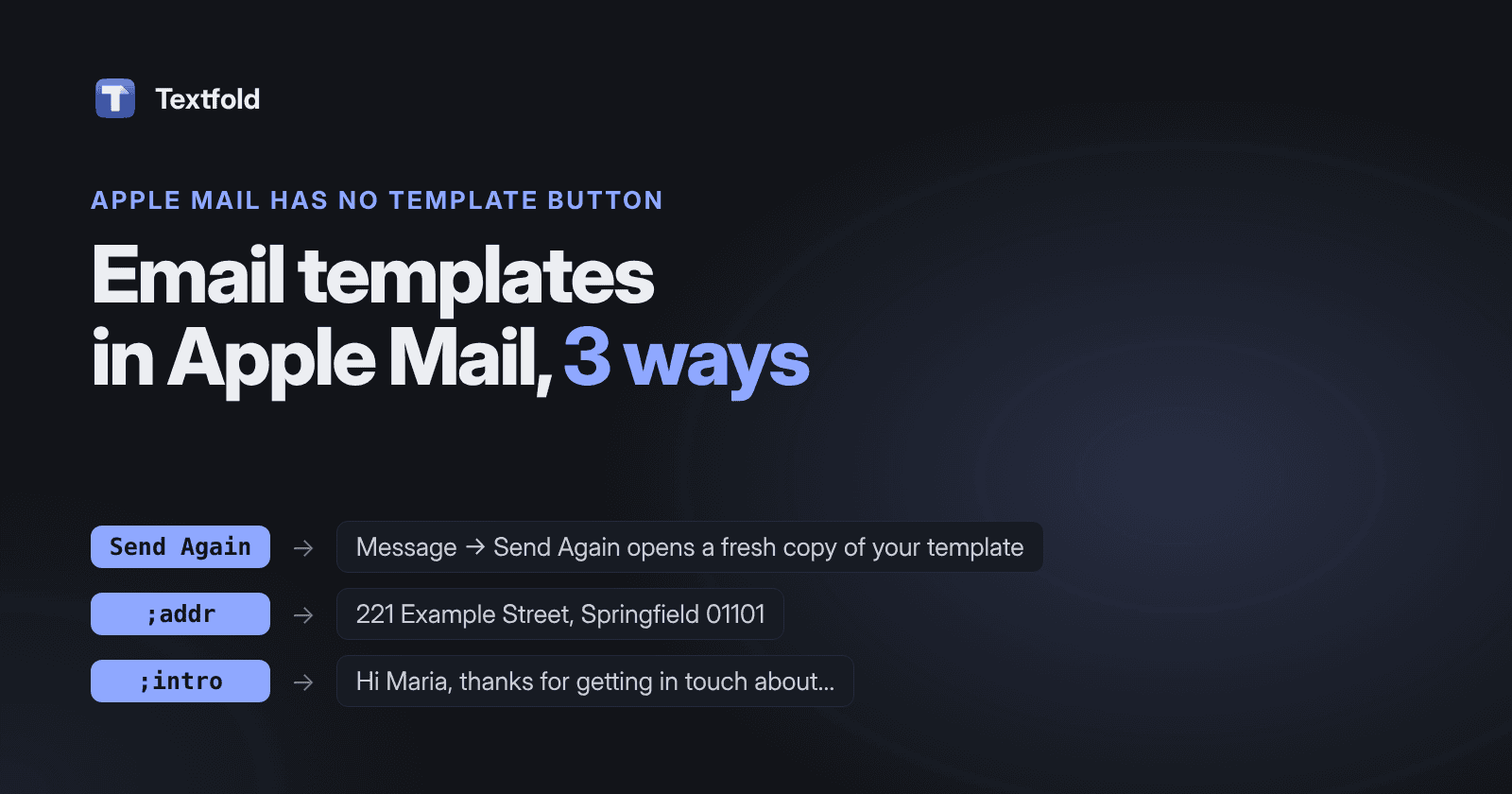
A quick disclosure: I make Textfold, the text expander in way 3. Ways 1 and 2 are built into your Mac and cost nothing, and for many people they're enough.
1. A Templates mailbox and Send Again (built in)
This is the closest thing Apple Mail has to templates. You keep finished emails in their own mailbox, and Mail's Send Again command opens a fresh, editable copy whenever you need one.
Set it up once
- In Mail, choose Mailbox → New Mailbox. Pick a location (On My Mac keeps it on this Mac; your iCloud account makes it show up on your other devices) and name it Templates.
- Write the email you keep re-sending: subject, text and formatting. Leave the To field empty unless it always goes to the same person.
- Choose File → Save (⌘S) and close the window. The email is now in Drafts.
- Open Drafts and drag the email into your new Templates mailbox.
Use it
- Open the Templates mailbox and select the template (one click, don't double-click).
- Choose Message → Send Again. Mail opens a new copy you can edit and send; the template itself stays as it was.
- Add the recipient, change the details, send.
Watch out: double-clicking a template opens the original, so any edit you make changes the template. Always start from Send Again.
Good for: longer emails with formatting you send a few times a week. Not great for: replies, since it always starts a new email, and anything you need dozens of times a day. You still find the template and type the name and details by hand every time.
2. Text Replacements for the short parts (built in)
macOS can swap a short abbreviation for longer text as you type, and Apple Mail supports it. It's perfect for the pieces you type in almost every email:
- Open System Settings → Keyboard, then click Text Replacements…
- Click +. In Replace, type a short abbreviation like
;addr; in With, type the text. - In Mail, type
;addrand a space. If nothing happens, check Edit → Substitutions → Text Replacement is ticked.
Starting abbreviations with a semicolon means they never fire by accident in normal writing. Text Replacements sync through iCloud, so they work on your iPhone too.
Good for: one-line pieces like your address, phone number, a booking link or a standard sign-off. Not great for: whole emails. There are no fields for the person's name, no dates, and they only work in apps that support them. If they stop working, here's how to fix it.
3. A text expander with fill-in fields (fastest)
A text expander is Text Replacements with more power: whole emails behind a short abbreviation, a small form that asks for the name and details before anything is typed, today's date or a weekday filled in for you, and the cursor left where you'll keep writing. It works in Apple Mail, in Gmail or Outlook in the browser, and in any other app, so the same reply works when the question comes in on Slack.
Two Apple Mail templates written for Textfold. Parts in braces ask for a detail, offer a menu, or fill in a date:
;intro Reply to a new enquiry
Hi {field:First name},

Thanks for getting in touch about {field:Topic}. {cursor}

I'll get back to you with details by {date:EEEE+2bd}.

Best,
Jeyanth
;checkin Follow-up
Hi {field:First name},

Just checking in on my last email. If it's easier to talk, I'm free {choice:When|tomorrow afternoon|later this week|any time next week}.
Type ;intro, fill in the first name and topic, press Return, and the finished email appears with the cursor where you'll add a personal line. {date:EEEE+2bd} becomes the weekday two business days from now, so it never promises a Saturday. The placeholder list covers the rest.
Some text expanders for Mac, and who each one suits:
- TextExpander: the best known, on Mac, Windows, iPhone and in Chrome, with shared team libraries. It needs an account and a subscription. Compared with Textfold.
- Typinator: a mature Mac app with deep features, including regular expressions and scripts. A one-time license covers one major version. Compared with Textfold.
- aText: inexpensive, on Mac and Windows, and it can insert formatted text and images. Compared with Textfold.
- Espanso: free and open source, configured by editing YAML files. Good if you like config files. Compared with Textfold.
- Textfold: the one I make. A native Mac app with fill-in forms, dates and a live preview, snippets kept as plain text files you own, no account, and nothing you type leaves your Mac. Free for 10 snippets with every feature; Pro is $29 once. Plain text only, so no logos or bold.
For prices and platforms side by side, see the best text expanders for Mac, compared.
Don't forget signatures
If the part you repeat is your sign-off, Mail's own signatures may be all you need: Mail → Settings → Signatures, click +, and pick it from the Signature menu in a new email. Signatures only go at the end of an email, though; for anything else, use one of the three ways above. More in how to make an email signature shortcut.
Which one to use
- A few longer emails with formatting, sent now and then: a Templates mailbox and Send Again.
- Short pieces you type all day, like an address or a link: Text Replacements.
- Replies with a name and details that change every time, or that you send outside Mail too: a text expander. Textfold's free plan covers 10 snippets with every feature, fill-in forms included.
Questions
Does Apple Mail have templates?
No. Mail has no template feature. The Templates mailbox and Send Again approach above is the closest built-in option.
What happened to Stationery?
Older versions of Mail had Stationery, a set of designed email backgrounds you could also save your own emails into. It doesn't appear in recent versions of Mail, so the Templates mailbox is the way to go now.
Will Send Again keep my formatting?
Yes, the new copy keeps the subject, text and formatting of the template, so set those up once and only change the details.